
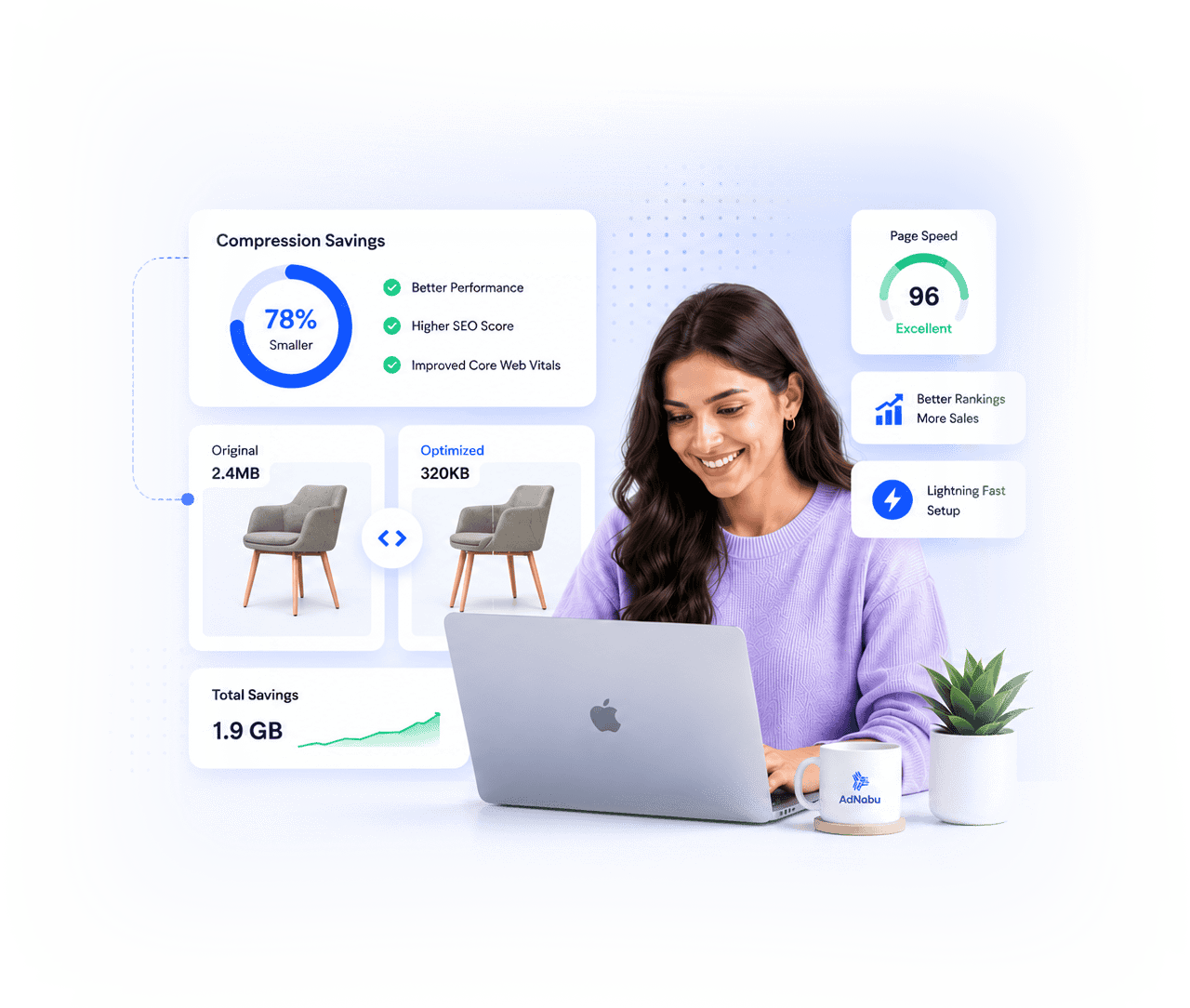
Compress product, collection, and blog images without losing quality and help your Shopify store load faster. Improve your Core Web Vitals score, rank higher in organic search, and give shoppers a better experience — all from one simple app.


Product photos, collection banners, and blog visuals are usually the largest files on a Shopify page. When they are uploaded straight from a camera or design tool, each one can weigh several times more than it needs to. Every extra kilobyte adds to the time a shopper waits, and on a slow mobile connection, that wait is often long enough to lose the sale.
Large product and variant images typically take the longest to load, so shoppers may see blank spaces where your best photos should be.
Visitors browsing on mobile data are generally less patient. If a page takes too long to show the product, many simply head back to the search results.
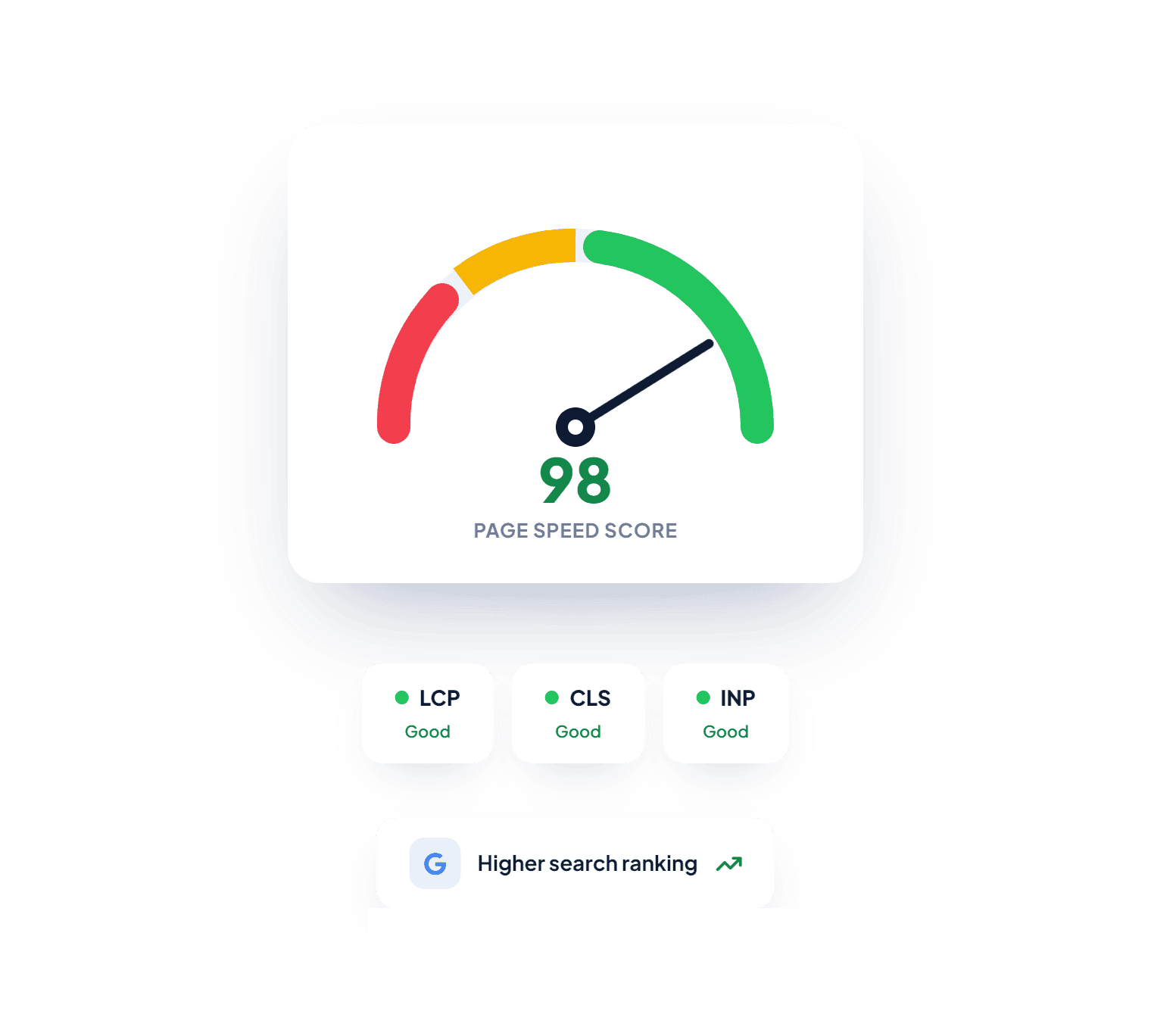
Page speed is part of how Google generally evaluates page experience, so a store weighed down by oversized images can find it harder to rank in organic search.
Downloading, compressing, and uploading images again one by one works for ten products. Across hundreds of products, collections, and blog posts, it usually is not realistic.
Nabu Image Optimizer brings all of this into one dashboard inside Shopify, so you can compress images in bulk without leaving your admin, at no cost.
Image compression reduces an image's file size by removing data the human eye usually does not notice. The photo looks the same to shoppers, but it typically downloads much faster.
On Shopify, every product, collection, and blog page loads these files for each visitor. That is why a Shopify image compression app is often one of the first tools merchants install when they want to speed up their Shopify store without redesigning their theme.
Single Image Compression: Compress one image at a time when it deserves a closer look, such as a homepage banner or the main photo of a best selling product.
Bulk Compression: Select every image in the Products, Collections, or Blogs tab, narrow the list with filters if needed, and run one job at a single compression level. A progress card tracks the job while you keep working in the app.
Nabu Image Optimizer supports both, so you can fine tune important visuals individually and handle the rest of your catalog in one pass.
Shopify hosts every image you upload and delivers it to visitors from cdn.shopify.com. What it does not offer is a simple way to compress those originals, review the savings, or undo a change. Here is what you add with a dedicated Shopify image optimizer app:
Shopify handles image delivery and automatic CDN optimization. Nabu gives merchants file-level compression controls, bulk processing, and clear before-and-after comparisons.
Everything happens inside your Shopify admin. Here is what the process looks like:
Add the app from the Shopify App Store and confirm which images to include. Products, collections, and blogs are all selected by default, and you can change this later in Content Settings.
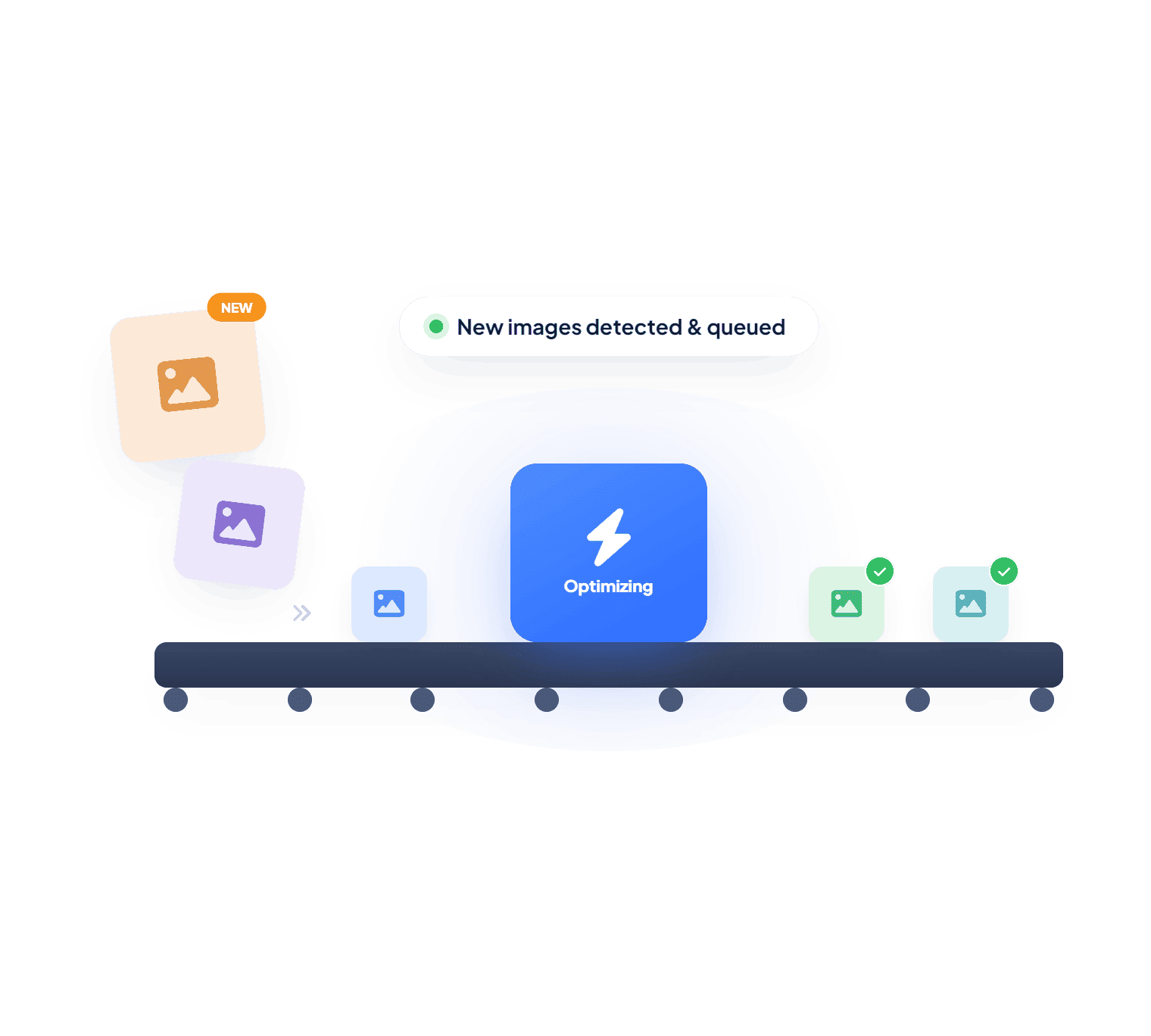
The app pulls your selected images from Shopify in the background. Open the sync status to see items synced, estimated time remaining, and progress for each source.
Choose one image or a whole tab, set the compression level, and click Begin Compression. Each finished row shows the before and after size, so the savings are easy to check.
When a bulk job finishes, the app shows how many images were compressed and how much space you saved. If an image fails, Retry Failed runs it again at the same level, and Restore Originals brings back the previous files for that job.
Bottom line: Lighter images, quicker pages, and far less manual work.
Whether you sell twenty products or twenty thousand, Nabu Image Optimizer fits the way your store already works.
Several variant images per product add up quickly. Select every image in the Products tab and compress them in a single bulk job instead of working row by row.
When texture and color sell the product, use a lighter compression level on close up shots and a stronger one on supporting images.
Buying guides and lookbooks often carry large inline photos. Include blog images as a source so your articles load as quickly as your product pages.
Launching soon? Compress your images before you start driving traffic, so first time visitors get a quick experience from day one.
Before a big promotion, filter by optimization status to find images you have not compressed yet and clear them in one pass.
Not sure which level suits your catalog? Run a batch, review the space saved, and use Restore Originals if you would like to try a different level.




 MentionBird
Track your brand's AI visibility and get ranking advice
Copyright © AdNabu Global, Inc. 2026. All rights reserved.